Is PicsArt Safe? MOD APK Risks, Permissions & How to Check Before You Install
Is PicsArt safe? It depends on the file, since PicsArt MOD APK isn’t distributed through Google Play — there’s no simple yes-or-no answer, only what you can verify yourself about the source, the file, and its permissions. This page walks through the real risks involved, what permissions to expect and what should raise concern, and practical steps you can take to check a file yourself before installing it.
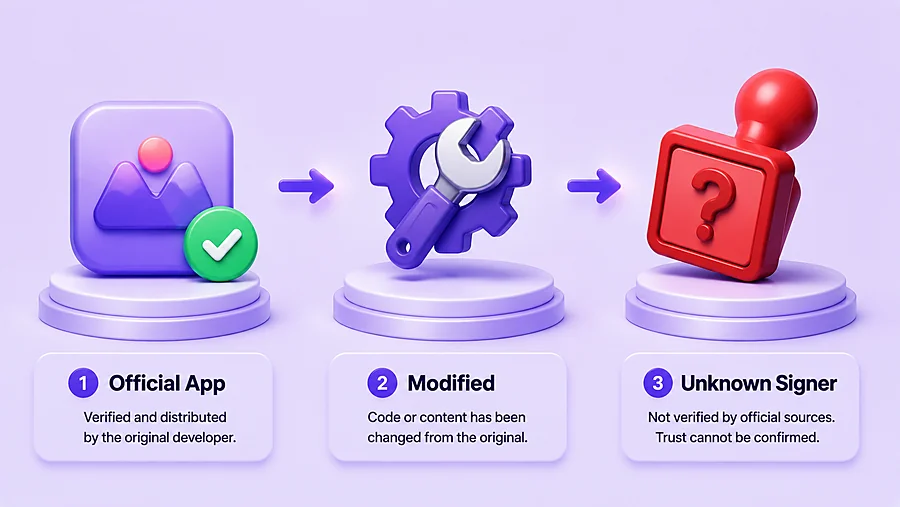
Why MOD APKs Aren’t the Same as Official Play Store Apps
When you install an app from Google Play, it goes through a verification process before it reaches you, and it stays connected to that trust chain for every future update. A MOD APK works differently: it starts as the official PicsArt app, but a third party takes it apart, alters its code to unlock restricted features, and re-signs it under a different developer signature before redistributing it.
That last step matters more than it might seem. Re-signing means the app is no longer verified by PicsArt or Google — it’s verified by whoever modified it, and you have no way to confirm who that actually is or what else they may have changed along the way.
The core editing tools you use are still built on PicsArt’s original code, but the trust relationship between you and the developer has effectively been replaced by trust in an anonymous third party.
This doesn’t automatically mean a given file is dangerous — plenty of MOD APKs circulate without issue. But it does mean the safety of any specific file depends entirely on where it came from and who modified it, not on the fact that it’s “PicsArt” underneath.
This applies whether you’re installing directly on an Android phone or running the file through an emulator on PC.
Is PicsArt Safe? The Real Risks of Using a MOD APK
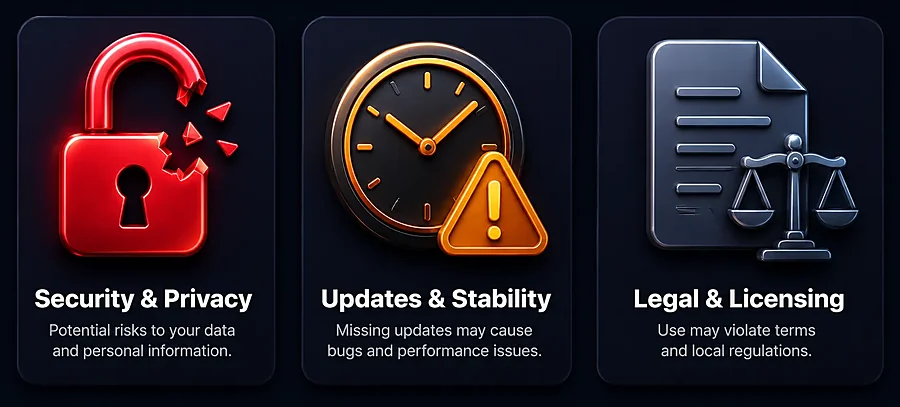
Since a MOD APK bypasses the verification process official apps go through, the risks fall into 3 distinct categories — and it helps to understand each one separately rather than treating “unsafe” as a single vague label.
Security & Privacy Risks
Because the file has been altered by someone outside PicsArt, there’s no guarantee about what else was changed during that process. Some modified builds have been found to include hidden trackers, bundled ad-injection code, or permissions requests that go beyond what a photo editor actually needs — access to contacts, SMS, or call logs, for example, has no real reason to be inside an editing app.
If a build includes anything like this, it can quietly collect data in the background without you noticing.
Update & Stability Risks
Official apps update automatically and predictably. A MOD APK doesn’t follow that same path — every update has to be manually re-downloaded and reinstalled, usually from the same third-party source as the original file.
This creates a gap: if PicsArt changes its official app (which happens regularly, especially for AI-related features), the modified version can fall behind, break, or stop working correctly until someone releases a new patched build. There’s no fixed timeline for when — or if — that happens.
Legal & Licensing Risks
The premium filters, templates, and assets unlocked in a MOD build are still PicsArt’s intellectual property — the modification doesn’t change who owns them, it just removes the payment step.
Using that unlocked content for personal projects is a gray area most people don’t run into problems with.
The picture changes if you use it commercially — client work, branded content, anything you’re being paid for — since you never actually obtained the rights to use those assets professionally.
What Permissions Does PicsArt MOD APK Request — and Why?
Every Android app has to ask for permission before accessing certain parts of your device. Some of these are genuinely necessary for an editing app to function — others aren’t, and seeing them requested is a legitimate reason to pause before installing. Here’s what to expect, and what should raise a flag.
|
Permission |
What It’s For |
What to Watch For |
|---|---|---|
|
Storage |
Saving and importing your photos and videos |
Normal and expected — every editing app needs this |
|
Camera |
Taking photos directly within the app |
Normal if you plan to shoot photos inside the app |
|
Microphone |
Recording audio for video projects |
Normal only if you’re editing video with sound — question it if you only use photo tools |
|
Network / Internet Access |
Loading templates, AI tools, and cloud features |
Normal — most AI features require this to function |
|
Device ID / Logs |
Sometimes required by the app’s core framework |
Reasonable in small amounts, but excessive log access can be a sign of tracking behavior |
|
Contacts |
Not a standard requirement for a photo/video editor |
Red flag — no legitimate reason for an editing app to need this |
|
SMS / Call Logs |
Not related to any editing functionality |
Red flag — this permission has no purpose in PicsArt and shouldn’t be requested |
|
Location |
Not required for core editing features |
Caution — some apps request this for ad-targeting; deny if you’re unsure why it’s asked |
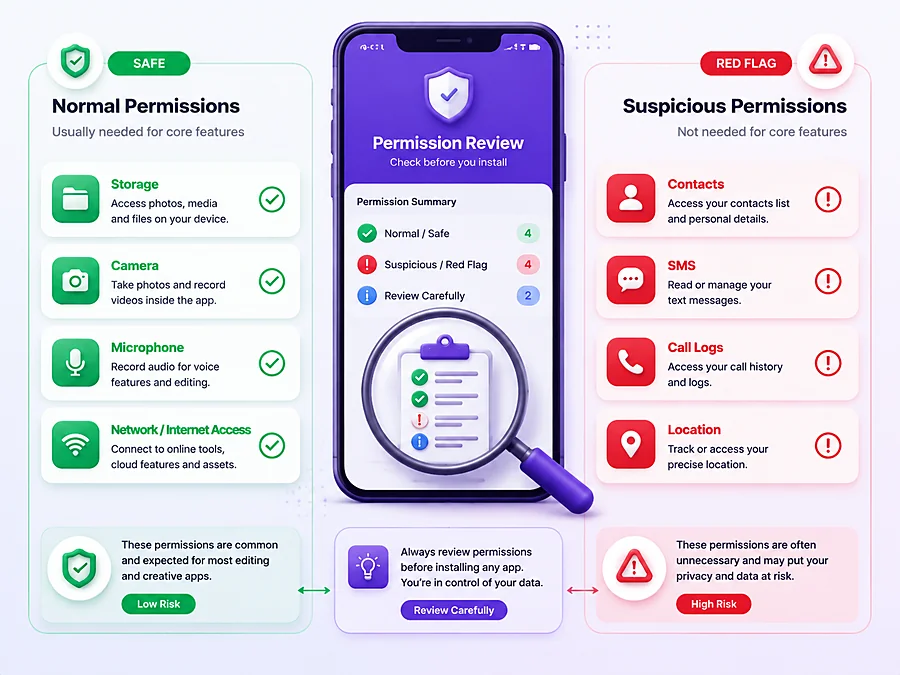
If an install screen shows permissions beyond storage, camera, microphone, and network access, it’s worth stopping and reconsidering the source of that specific file before continuing.
How to Check If an APK File Is Safe Before Installing
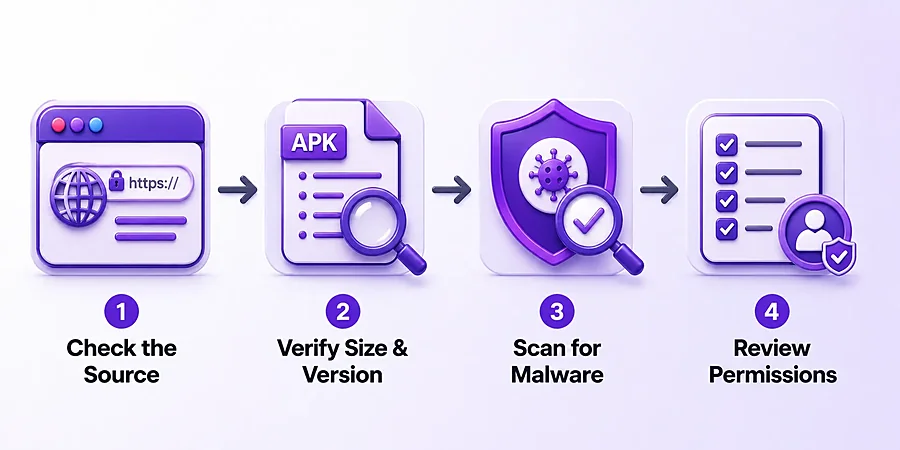
You don’t need to be technical to do a basic safety check on an APK file. These 4 steps take a few minutes and catch the majority of obvious red flags before you ever hit install.
Check the Source Website First
Before you even download anything, look at the site itself. A trustworthy source usually has clear contact information, a privacy policy, and consistent, professional content — not just a download button surrounded by aggressive pop-ups or redirect ads.
If a site redirects you through multiple pages before the download starts, or the download button doesn’t match what you clicked, treat that as a warning sign and look elsewhere
Verify the File Size and Version Match
Compare the file size and version number listed on the download page against what actually downloads to your device. A significant mismatch — say, a file that’s supposed to be 75MB but downloads as 40MB or 150MB — can indicate the file was tampered with, bundled with extra code, or isn’t actually what it claims to be. This takes seconds to check and catches obviously altered files.
Scan the APK with a Malware Scanner
Before installing, upload the downloaded APK file to a scanner like VirusTotal, which checks it against dozens of antivirus engines at once and is free to use. Here’s how:
- Go to virustotal.com and select “Choose File.”
- Upload the APK file you downloaded — don’t install it yet.
- Wait for the scan to complete, usually under a minute.
- Review the results.
A couple of flags from obscure or lesser-known antivirus engines isn’t unusual and doesn’t necessarily mean the file is dangerous, but multiple flags from major, well-known antivirus engines is a clear reason not to install it.
Review Permission Prompts During Install
When Android shows you the permissions screen before installation, actually read it instead of tapping through automatically. Compare what’s being requested against the permissions table earlier on this page — if you see anything outside storage, camera, microphone, and network access, cancel the installation and reconsider the source.
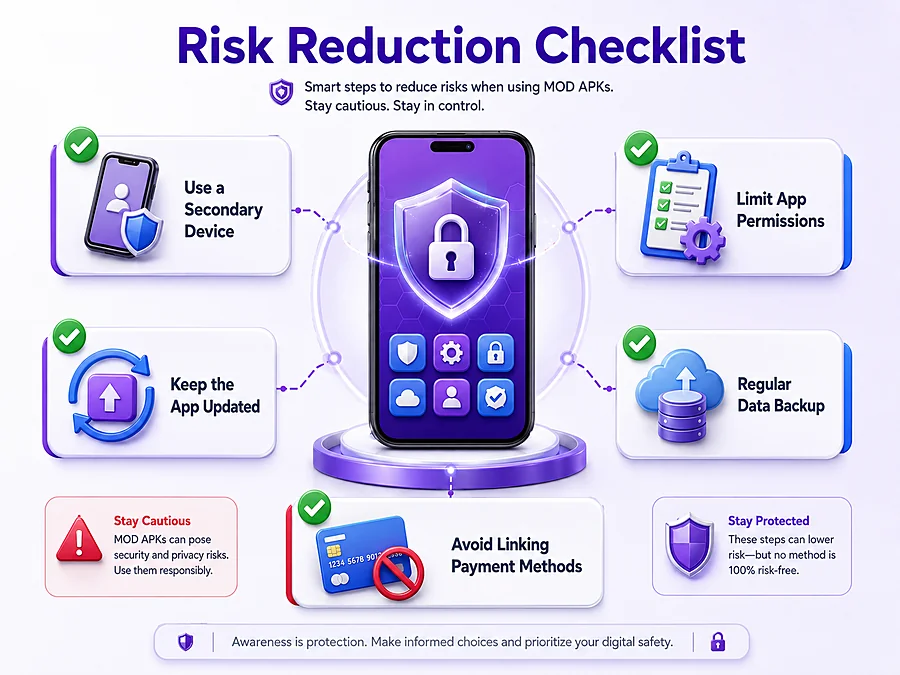
Safety Tips If You Choose to Use a MOD APK
If you’ve weighed the risks and decided to move forward, these steps reduce your exposure without requiring any technical expertise.
Is It Legal to Use PicsArt MOD APK?
Legality and security are two separate questions, and it’s worth keeping them apart. A MOD APK can scan clean and still raise legal concerns, because the legal issue isn’t about malware — it’s about using modified software and unlicensed premium content.
Modifying and redistributing an app without the developer’s permission generally violates that app’s terms of service, and using premium assets you never actually paid for or licensed exists in a legal gray area in most regions.
For personal, non-commercial use, this is unlikely to result in any real consequence for an individual user — enforcement at that level is rare.
The picture changes if you use unlocked premium content commercially: using assets you don’t hold a license for in client work, branded content, or anything monetized creates real exposure, since the content was never legally licensed to you in the first place.
If you’re editing for business purposes, the official PicsArt subscription is the only option that avoids this risk entirely, since it comes with an actual license to use what you’re paying for.
Official PicsArt vs MOD APK — Which Is Safer?
The official PicsArt app is the safer choice by every measure covered on this page — verified distribution, automatic security updates, licensed content, and official support if something goes wrong.
A MOD APK can be used with reduced risk if you follow the checks and tips above, but it will never match the official app’s trust model, since that trust ultimately depends on an anonymous third party rather than PicsArt itself.
If you want the full side-by-side breakdown of features, pricing, and what changes between the two versions, see our complete Official vs MOD comparison on the main PicsArt MOD APK page.
Frequently Asked Questions
Conclusion
PicsArt MOD APK isn’t inherently safe or unsafe — it depends entirely on the file itself, where it came from, and what you do to verify it before installing.
The real risks are genuine: unverified modifications, no automatic security updates, and potential legal exposure if you use unlocked content commercially. But they’re also manageable if you check the source, verify the file, scan for malware, and pay attention to the permissions you’re granting.
If you’re editing casually and take these precautions, the risk is reasonable. If you’re editing for business or client work, the official PicsArt subscription remains the only option that removes this uncertainty entirely.